Overprint in packaging: reviewing white, black and spot colors
Packaging artwork can have accurate copy, well-positioned images and an approved layout while still hiding a production question: what happens where two colors meet? An ordinary PDF view does not always make the answer clear.
Reviewing this requires looking at objects and their separations as well as the overall appearance. The following workflow focuses on white, black and spot colors. It helps turn vague comments such as “this area looks different” into decisions that design and prepress can verify.
1. Define the intended result before editing
With knockout, the upper object removes underlying colors in its area. Overprint preserves underlying inks according to the PDF's separation rules. Enabling it can therefore change overlapping areas. The Illustrator overprint documentation explains the distinction and recommends discussing the outcome with the printer.
Start with a specific question: should the element allow the color underneath to show through or cover it? Record the answer for each sensitive region, such as a badge over a colored band. Avoid applying a global fix just to make the screen look pleasing. A change that resolves one element may conflict with another element's intended behavior.
2. Investigate disappearing white objects
Process white, with zero values in all CMYK channels, does not represent an additional white ink. An object carrying an unintended overprint attribute can disappear in output. Adobe describes the issue in its guide to white overprint.
Choose a white area and confirm its purpose. Should it reveal the substrate, knock out the background or receive white ink? If text disappears in the simulation, locate the original object and check both fill and stroke before correcting it. Export again and repeat the inspection on the resulting PDF. A screenshot taken before the correction does not close the issue.
3. Give white ink its own specification
For a job with printed white, ask the supplier how the channel should be identified and prepared. Some workflows map a spot color to the printer's physical white ink channel; the Fiery XF documentation provides one example.
Request the convention for that production job rather than copying settings from another device. Record the channel name, the areas that need white and the intended relationship with the other inks. For a clear label, for example, mark which areas should remain transparent. Ask for technical confirmation of the mask; do not infer its purpose solely from the color used to represent it on screen.
4. Review black according to its use
Small type and a large black area call for different questions. Adobe's guidance on black and overprint distinguishes process black from rich black and recommends agreeing on the ink build with the supplier.
Divide the inspection by use: text, lines, codes and backgrounds. Check each object's actual color build instead of assuming that all visually black elements are identical. If someone requests a black change, ask them to identify the element, the required build and who validated the decision. Avoid turning a background preference into an automatic rule for the entire artwork.
5. Inspect separations in the exported PDF
Acrobat Pro's Output Preview lets you simulate overprint and toggle separations. Use the PDF actually submitted for review. Open each relevant channel, locate the elements under discussion and record the difference between observed and intended behavior.
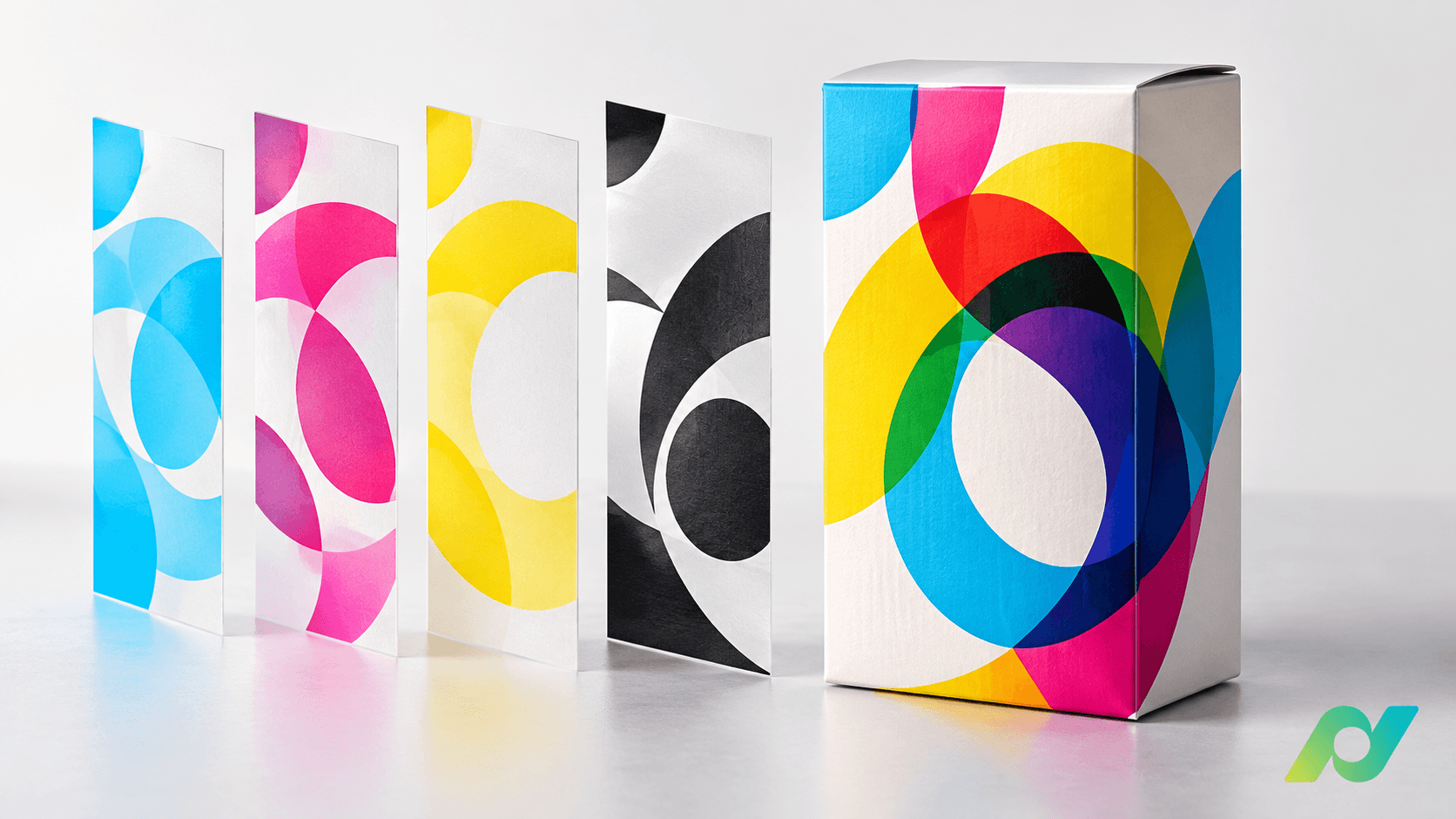
A practical sequence is to check the composite view, isolate inks, review fills and strokes, and return to the composite. Compare the channel list with the supplied specification too. If an unexpected channel appears, investigate its origin before converting or removing it. For every adjustment, keep a reference to the region and repeat the same sequence on the corrected version, including nearby areas.
6. Repeat checks after conversions
Converting a spot color to CMYK can change overprint interactions. The PDF Association explains this behavior and its relationship with conversions and transparency.
Include this possibility in change control. When someone changes the color space or transparency handling, request a new comparison of the affected area. Identify which PDF was inspected and which replaces the previous version. Do not reuse an approval given before conversion without checking the outcome. If the intent remains ambiguous, ask the technical owner a specific question instead of choosing based on appearance.
7. Close the review with a verifiable decision
For every open issue, record the element, intended behavior, requested correction, checked version and person responsible for validation. Agree with the supplier when a proof appropriate to the job is needed. An on-screen simulation helps investigate the file, but it cannot resolve physical ink and substrate questions on its own.
To organize this work, eyeView Revision brings together separation viewing, file comparison and step-by-step approvals. Use these capabilities to discuss the same region and version with everyone involved, while leaving production decisions with the responsible technical team.
A completed review should make it clear what changed, why it changed and which file was checked. That record turns an overprint question into an informed approval.